
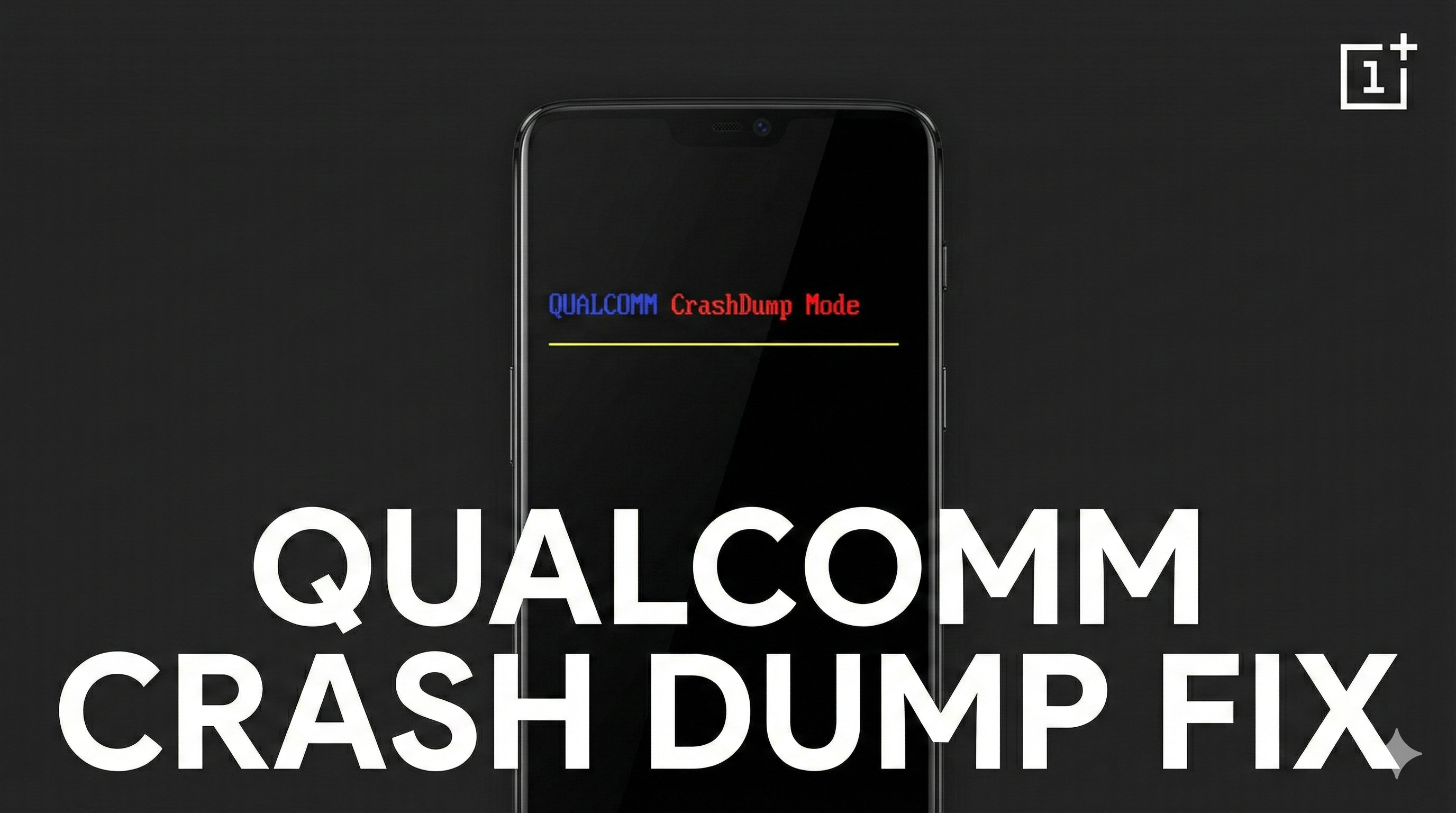
Encountering a sudden system failure on a smartphone can be a heart-stopping experience for any technology enthusiast or everyday user. One of the most notorious and intimidating errors in the Android ecosystem, particularly among OnePlus devices, is the dreaded Qualcomm Crash Dump Mode. When a device displays this error, the screen is overtaken by lines of diagnostic text, the operating system refuses to load, and the phone appears completely unresponsive. While this sight often leads users to believe their expensive hardware is permanently broken, the reality is far more hopeful. Restoring the device to full functionality is entirely possible with the right set of tools and a clear understanding of the recovery process.
Understanding why the Qualcomm Crash Dump error occurs is the first step toward resolving it. This specific mode triggers when the device’s system partitions suffer severe corruption or encounter an unrecoverable fault during the boot sequence. Most commonly, this stems from a failed over-the-air (OTA) software update, an interrupted installation, or unsuccessful attempts at custom modifications like rooting or installing third-party firmware. Modern smartphones utilize a dual-partition system, known as Slot A and Slot B, to allow for seamless software updates in the background. If the active partition becomes damaged or the bootloader fails to verify the system integrity, the underlying Qualcomm processor halts the boot process to prevent further damage, resulting in the crash dump screen.
Watch the full tutorial here on my Youtube channel:
Successfully recovering from this state requires a specialized software utility known as the MSM Download Tool. This powerful software is engineered to communicate directly with the device’s core hardware at a level much deeper than standard recovery modes. However, preparation is crucial. You must obtain the version of the MSM Download Tool compiled specifically for your exact device model and your desired Android version. Attempting to use a tool meant for a different model can result in catastrophic hardware failure. For instance, restoring a model like a OnePlus 6T requires the exact Oxygen OS firmware package intended for that specific hardware configuration. Alongside the MSM Tool, having the correct OnePlus USB drivers installed on a Windows PC is mandatory. Without these drivers, the computer will simply fail to recognize the connected smartphone, rendering the software completely useless.
The critical bridge between the malfunctioning smartphone and the MSM Download Tool is Emergency Download Mode, commonly referred to as EDL mode. Because the standard Android operating system is corrupted, the device cannot communicate with a computer using normal methods. EDL mode is a low-level diagnostic state built directly into the Qualcomm chipset, bypassing the Android software entirely. Transitioning a device from the crash dump screen into EDL mode requires a specific hardware button combination. By keeping the smartphone connected to the computer via a reliable USB cable and simultaneously holding down the volume up, volume down, and power buttons, the device is forced to shut down its current process and reboot into this emergency state. The transition is marked by the screen going entirely pitch black. For a novice, a completely blank screen might seem like a turn for the worse, but in this context, it confirms the hardware is ready to receive instructions.
Once the device rests silently in EDL mode, the previously installed USB drivers allow the PC to establish a stable connection. The MSM Download Tool will immediately detect the connected hardware, signaling that the firmware flashing process can commence. Activating the installation procedure commands the software to completely wipe the corrupted data on the device and systematically rewrite the stock, factory-verified software to both the A and B partitions. This dual-flashing process is highly effective because it guarantees that no matter where the software corruption originated, all remnants are erased and replaced with clean software.
Patience is required during this phase. As the progress bar steadily advances, large system files are being written directly to the internal storage. It is absolutely vital that the physical connection between the phone and the computer remains stable and undisturbed. An accidental disconnection during a low-level firmware flash is one of the few ways a device can be rendered truly irreparable.
Upon completion, the software will display a prominent green confirmation message indicating a successful download. At this moment, the device will automatically restart. Passing the initial boot logo successfully signifies the complete eradication of the crash dump error. The smartphone is essentially reborn, booting into a fresh, factory-reset state.
There is one important detail to keep in mind regarding the system's security state post-recovery. Because the MSM Download Tool flashes official stock firmware, it aggressively resets all system parameters to their factory defaults. Any device that previously had an unlocked bootloader will be securely locked once again. For enthusiasts who rely on unlocked bootloaders for custom ROMs, the standard bootloader unlocking procedure will need to be performed from scratch before any new modifications can happen. Ultimately, while the Qualcomm Crash Dump error appears devastating at first glance, it is merely a software hurdle that can be effortlessly overcome with patience and the right approach.
Subscribe to my Youtube channel for daily android tips tricks and tutorials: TechyNoob
Discussion (0)
Post a Comment
No comments yet. Be the first to share your thoughts!