
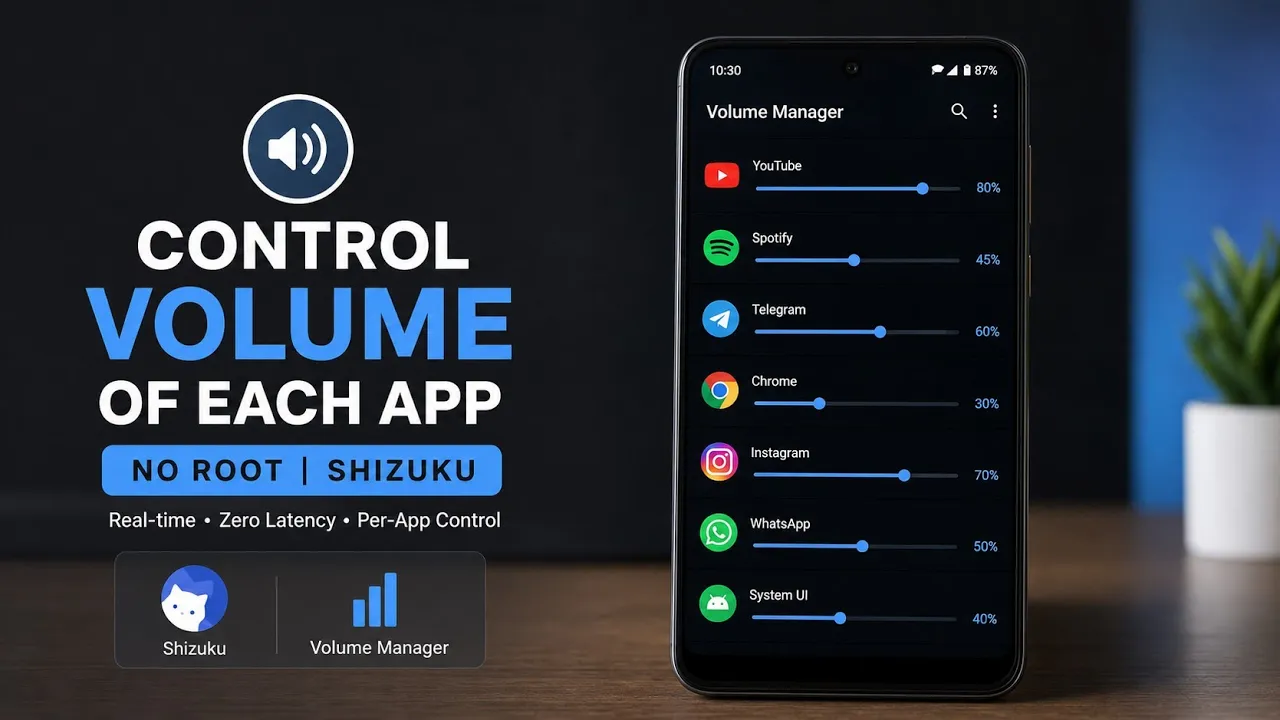
Android gives us plenty of control over system audio, but one feature that has always been surprisingly limited is per-app volume control.
For example, you might be listening to a podcast while playing a game in the background. Ideally, you should be able to lower the game’s volume without also reducing the volume of your podcast. Unfortunately, Android’s standard volume controls don’t always give you that level of control.
That’s where Volume Manager comes in.
Volume Manager is a lightweight Android utility designed to let you control the volume of individual applications independently. Instead of changing the overall media volume, you can adjust the audio level of specific apps while leaving everything else untouched.
What makes it particularly interesting is the way it works. Rather than requiring full root access, Volume Manager uses Shizuku to access privileged Android system APIs.
What Is Volume Manager?
The basic idea behind Volume Manager is very simple: give Android users individual volume sliders for their applications.
Once the application is running, it can display active media streams and installed applications through a clean interface. You can then adjust the volume of an individual app in real time.
For instance, imagine that you’re playing a game while listening to music or a podcast. Instead of lowering the phone’s entire media volume, you can reduce the game’s audio independently.
That makes the application useful for multitasking situations where several audio sources are competing for your attention.
The interface shown in the walkthrough is intentionally straightforward. Rather than filling the screen with complicated audio-processing controls, it focuses on the one feature most users are likely looking for: per-app volume control.
Watch the Video
Android 13 or Newer Is Required
There is an important compatibility requirement before installing Volume Manager.
The application requires Android 13 or newer.
Because it communicates with privileged Android system components through Shizuku, Shizuku also needs to be installed and running beforehand.
The script specifically mentions setting up Shizuku through Wireless Debugging or ADB before launching Volume Manager.
This means you don’t need to root your phone simply to use Volume Manager.
Instead, Shizuku provides the bridge that allows the application to access the required system functionality.
Installing Volume Manager
Installing the application itself is straightforward.
The APK can be opened from your Android file manager and installed using the normal Android package installer.
In the video, the APK is already available in the Downloads folder, and the installation completes within a few seconds.
The more important preparation is making sure Shizuku is already configured.
If Shizuku isn’t running, Volume Manager won’t have the privileged access it needs to perform its main function.
Setting Up Shizuku
Shizuku is essentially the part that allows Volume Manager to communicate with Android’s privileged system APIs without requiring full root access.
There are several ways to get Shizuku running, but for a typical non-rooted Android phone, Wireless Debugging is one of the convenient options.
You can also use ADB depending on your setup.
Once Shizuku is active, Volume Manager can use that connection to access the required functionality.
This is one of the reasons the application is interesting for users who don’t want to unlock their bootloader or root their phone simply to get more control over audio.
Adjusting Individual App Volume
After launching Volume Manager, the main screen displays the available applications and active media streams.
Each supported audio source can have its own volume slider.
Move the slider for one application, and its audio level changes independently of the overall system volume.
This is particularly useful in situations where you have multiple sources playing simultaneously.
You could, for example, keep a podcast at a comfortable volume while reducing the sound from a game running in the background.
It can also be useful when one application is significantly louder than another and you don’t want to repeatedly adjust the phone’s main volume control.
How Is It Different From SoundMaster?
The script compares Volume Manager with another ShizuTools application called SoundMaster.
The two applications approach audio management differently.
SoundMaster supports older Android versions, starting from Android 10, but uses the MediaProjection API to capture audio from applications and apply post-processing.
That approach allows SoundMaster to offer additional features such as an equalizer, per-app output-device routing and left-right balance controls.
However, that flexibility comes with some trade-offs.
The MediaProjection approach can introduce audio latency, and protected media streams can present additional limitations.
Volume Manager takes a much more focused approach.
Why Volume Manager Feels More Native
Instead of capturing and processing the audio after it has been produced, Volume Manager uses hidden Android system APIs to directly modify the volume level of individual audio streams.
The result is a much simpler audio path.
According to the script, this approach provides zero additional playback latency and allows the application to work with protected applications while remaining lightweight in the background.
That’s an important distinction.
Volume Manager isn’t trying to become a complete audio-effects suite.
It isn’t primarily about equalization or changing the sound itself.
It’s about controlling the volume level.
And because it focuses on that specific job, the experience can feel much closer to a native Android volume control.
What Volume Manager Doesn’t Do
The trade-off is that Volume Manager doesn’t attempt to provide every audio feature.
If you’re looking for a built-in equalizer, left-right balance controls or advanced output-device routing, an application such as SoundMaster may be more appropriate.
Volume Manager deliberately keeps things simpler.
You get individual volume controls without adding a layer of audio processing between the application and the device’s audio system.
For users who simply want independent app volume, that simplicity is arguably the main attraction.
Does It Require Root?
No full root access is required according to the supplied script.
Instead, Volume Manager uses Shizuku to access privileged APIs.
That’s a useful middle ground for Android users who want additional functionality but don’t necessarily want to modify the system partition or install a root solution.
Of course, Shizuku itself still needs to be configured correctly, and the exact setup can vary depending on whether you’re using Wireless Debugging, ADB or another supported method.
Who Should Use Volume Manager?
Volume Manager makes the most sense if you frequently have multiple audio sources running on your phone.
If you listen to music or podcasts while using other applications, individual volume control can make the experience much more convenient.
It’s also useful if certain applications consistently produce audio that is much louder than everything else.
Rather than changing the entire device volume every time, you can adjust that particular application’s level.
On the other hand, if you rarely have multiple audio sources playing at the same time, you may not notice much benefit from installing another utility.
A Lightweight Approach to Audio Control
One of the strongest aspects of Volume Manager is that it doesn’t try to solve too many problems at once.
There are no unnecessary audio effects being added to the playback chain.
There isn’t a complicated equalizer interface to configure.
The application’s purpose is straightforward: control application volume independently.
The script describes it as using the system’s underlying audio controls rather than capturing and reprocessing the audio stream, which helps explain why the application can remain lightweight and avoid the latency associated with audio processing through MediaProjection.
Final Thoughts
Volume Manager is a good example of how a relatively small Android utility can solve an everyday annoyance.
Android’s standard volume controls are fine when you’re dealing with one audio source, but things become less convenient when several applications are producing sound at the same time.
Volume Manager addresses that problem by providing individual volume controls for Android applications.
The application requires Android 13 or newer and relies on Shizuku, which means you don’t need full root access simply to use its core functionality.
Compared with audio-processing solutions such as SoundMaster, Volume Manager takes a more focused approach. It doesn’t try to provide equalizers or extensive audio effects; instead, it concentrates on controlling individual audio streams directly.
If you’re looking for a simple way to lower one application’s volume without affecting everything else playing on your phone, it’s definitely an interesting utility to try.
Download
Credits
Requirements: Android 13 or newer + Shizuku
Root Required: No
Main Feature: Per-app volume control
Discussion (0)
Post a Comment
No comments yet. Be the first to share your thoughts!