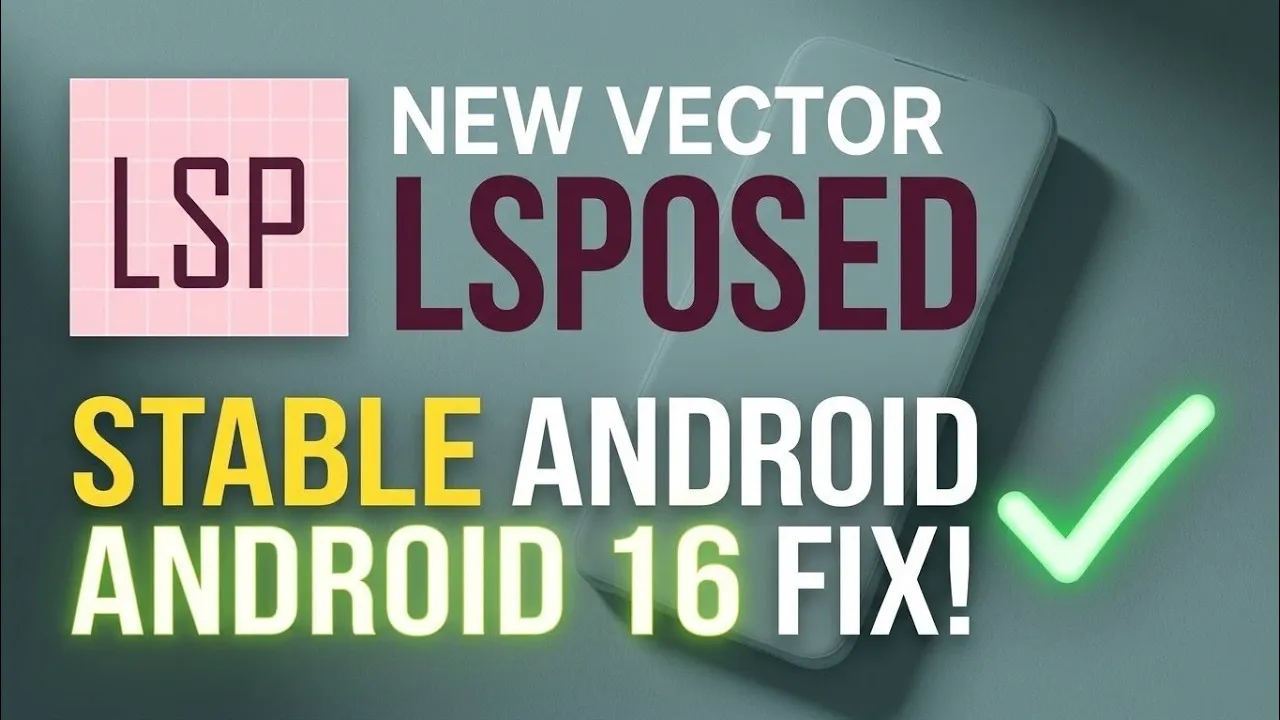
For Android enthusiasts, achieving the perfect custom setup is an ongoing journey. With the continuous evolution of mobile operating systems, many users have noticed that their tried-and-true system modifications occasionally cause unexpected stability issues on newer firmware. If you have been dealing with random soft reboots, sudden application crashes, or unexplained background battery drain lately, the underlying cause might be an outdated hooking framework struggling to keep up with the OS. Fortunately, the developer community has delivered a powerful, modern solution. Here at Techynoob, we are taking a detailed look at the highly anticipated Vector LSPosed release, a major architectural update designed specifically to restore stability and enhance performance on customized devices.
Vector represents the next-generation evolution of the popular Android hooking environment. Built entirely as a streamlined Zygisk-only module, it introduces native-level system hooks while maintaining strict compatibility with the modifications you already rely on. However, the most significant highlight of this specific Vector build is what is happening completely under the hood. The developers have implemented a massive upgrade by heavily updating the PLTI (Platform Level Translation Interface) to specifically address and fix potential system crashes associated with the Dex2oat hook.
To understand why this is such a crucial upgrade, it helps to know how Android manages applications in the background. The Dex2oat process is a fundamental component of the Android operating system. It is primarily responsible for compiling and optimizing your installed apps to ensure they launch quickly and run as efficiently as possible. In older framework versions, legacy system hooks would frequently interfere with this essential compilation process. When the Android system attempts to optimize a heavy application, the outdated hooks could trigger an error, resulting in frustrating app force closures, excessive battery drain, or unexpected system reboots. By completely rewriting and updating the PLTI for the Dex2oat hook, the Vector release practically guarantees a significantly smoother, crash-free experience for your daily driver.
Watch the full tutorial here on our Youtube channel:
Before diving into the installation process, it is highly important to clarify the current firmware compatibility of this specific framework build. At the time of writing, this Vector update has been thoroughly tested and confirmed to work flawlessly on Android 16. It handles native system optimization tasks without a single hiccup on this version of the operating system. However, it has not yet been extensively tested on the bleeding-edge Android 17 developer previews or the experimental custom ROMs based on that upcoming version. If you are currently running Android 16 and experiencing background instability, this update is highly recommended. For early adopters testing Android 17, it is best to proceed with caution until further stability reports are published.
To upgrade your system, you will need a few basic prerequisites. First, your device must be equipped with a modern version of Magisk, and the Zygisk feature must be toggled on in your Magisk settings. Secondly, you need to download the official Vector LSPosed Magisk module zip file. It is extremely important that you download this specific file directly from the developer's official GitHub repository. Sourcing the file from unverified third-party websites can result in downloading compromised, modified, or outdated packages that could harm your device's software environment.
The installation process itself is relatively straightforward, but it requires careful attention to your existing setup to avoid system conflicts or frustrating bootloops. Follow these exact steps to ensure a safe and proper transition to the new framework.
Step 1: Disable Your Existing Framework The very first thing you must do is manage your currently active environment. If you already have the older, standard version of the framework installed and running on your smartphone, you absolutely must disable it first. Open your Magisk manager application, navigate to the "Modules" tab located at the bottom of the screen, and locate your existing module. Simply toggle off the switch next to it. You do not necessarily have to permanently delete the module right now, but it must be completely disabled to prevent the old system hooks from clashing with the new Vector environment.
Step 2: Flash the Vector Zip File With the old version safely deactivated, remain in the "Modules" section of Magisk. Tap on the "Install from storage" button at the top of the interface. Carefully navigate through your device's internal storage folders to locate the newly downloaded Vector zip file. Select the file, and Magisk will automatically begin the flashing process. The automated installation script will extract the highly optimized binaries and place them correctly within your system partition. Monitor the installation log on the screen; it should complete quickly with zero errors.
Step 3: Reboot the Device Once the flashing process is completely finished and the installation log reads successfully, you need to finalize the system changes. Patiently press the reboot button located at the bottom right corner of the Magisk screen. This step is mandatory, as it allows the Android operating system to restart, rebuild its caches, and properly apply the new systemless changes to the core environment.
Step 4: Verify the Installation After your device has successfully booted back up into Android 16, open your app drawer and launch the framework manager application. Check the status indicator at the top of the main screen. You should see that the module is fully active and the framework is successfully hooked into the Android system. All of your previously enabled modifications should be recognized instantly. While the visual user interface may look identical to previous versions, the backend stability improvements are actively running and protecting your system in the background.
By transitioning to the updated Vector framework, you are effectively future-proofing your customized Android setup. Resolving the persistent Dex2oat compilation issues means your device can finally optimize applications natively without triggering unexpected soft reboots or bogging down your processor. It is an essential utility update for anyone pushing the boundaries of Android 16. Stay tuned to Techynoob for more deep dives into Android optimization, and let us know in the comments below how this framework update is performing on your specific device!
Subscribe to our YouTube channel for daily Android tips, tricks, and tutorials: TechyNoob


Discussion (2)
Post a Comment