
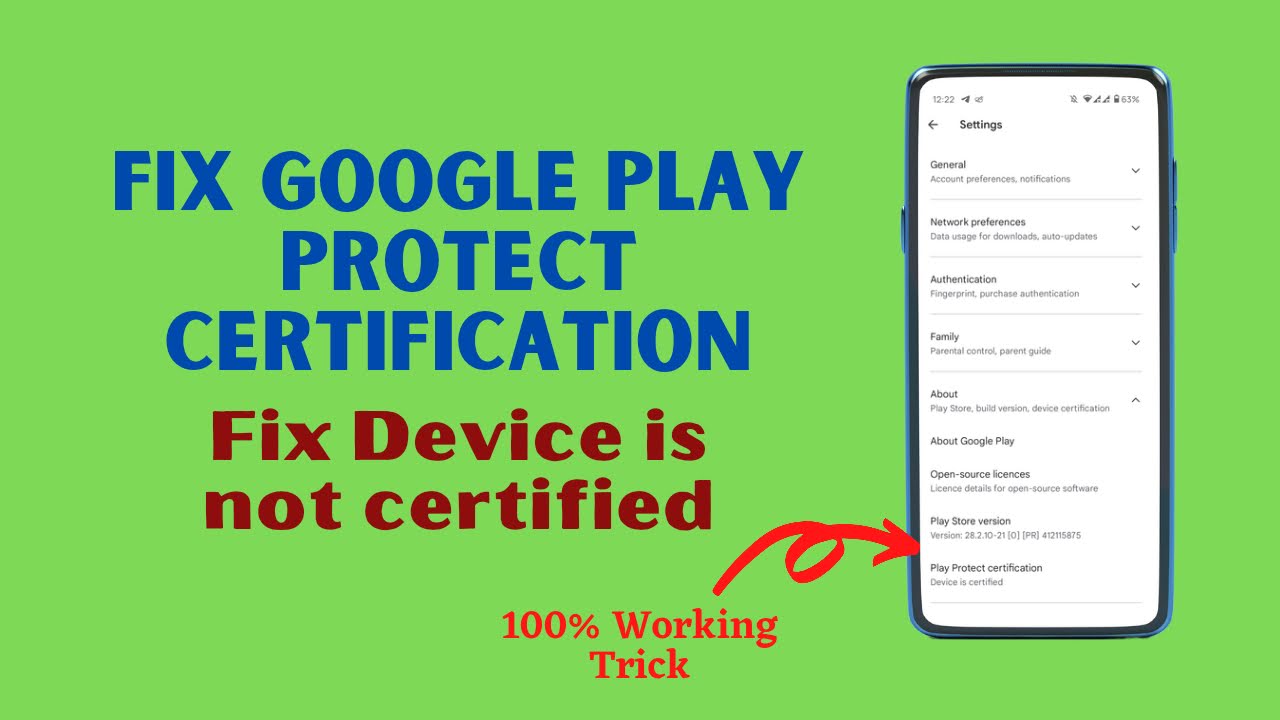
You just turned on your brand-new smartphone, or perhaps you recently updated your current device's software, and suddenly the Google Play Store throws a massive curveball: the dreaded "Device is not certified" warning. It is a frustrating scenario that leaves many Android users scratching their heads and searching for answers. This error is not just a minor cosmetic annoyance; it can completely lock you out of downloading essential applications, prevent you from using secure banking apps, and even block streaming services like Netflix from appearing in your search results entirely. If you are currently staring at this error on your screen, there is no need to panic or assume your phone is broken. The situation is entirely reversible, and getting your smartphone back to its fully functional, certified state is much easier than you might initially think.
Understanding the Certification Error
To fully resolve the problem, it helps to understand why Google implements this strict restriction in the first place. The Android ecosystem is vast and open-source, which means countless manufacturers and independent developers can modify the operating system. To maintain a consistent baseline of security, performance, and app compatibility, Google requires smartphone manufacturers to pass a rigorous compatibility test suite. If a device passes, it receives an official certification, giving it full access to Google Mobile Services.
However, if you are using a smartphone from an obscure brand that skipped this testing, or more commonly, if you have installed a custom ROM or modified your device's core firmware, the Play Store detects the anomaly. When the system fails to recognize the official digital signature of your device's software, it immediately flags it as uncertified. This is done primarily to protect your personal data and prevent potentially insecure software environments from accessing sensitive applications.
Watch full tutorial here on our Youtube channel:
A Safe and Official Workaround
Historically, fixing an uncertified device was a complex ordeal reserved for tech enthusiasts. It often involved unlocking the bootloader, flashing specific root files, and relying on complex modules to mask the device's true status from Google's servers. Fortunately, those days are largely behind us. There is a remarkably simple and straightforward workaround that completely bypasses the need for rooting or advanced system modifications.
This modern method is incredibly versatile, meaning it works flawlessly on completely stock, non-rooted smartphones just as well as it does on heavily modified, custom-built devices. Best of all, it utilizes an official registration portal provided by Google itself, making it a completely safe, legitimate, and AdSense-friendly troubleshooting step that won't compromise your device's security.
Step-by-Step Registration Process
The process begins with obtaining a unique identifier hidden deep within your smartphone's system architecture, known as the Google Service Framework (GSF) ID. Since this specific number is not readily available in your standard settings menu, you will need a lightweight third-party tool to fetch it. Open the Google Play Store—which should still allow basic app downloads despite the error—and search for a utility app simply named "Device ID." Download and install the first reputable application that appears in the search results.
Once installed, launch the Device ID application. You will be greeted with a list of various system identifiers and hardware numbers. Look closely for the entry specifically labeled "Google Service Framework (GSF)." This will be a long string of alphanumeric characters. Tap on this specific entry, and a prompt will appear allowing you to copy the ID directly to your smartphone's clipboard. With the ID securely copied, you can close the application entirely.
The next phase involves registering this unique ID with Google's servers. Open your preferred mobile web browser, such as Google Chrome, and navigate to Google's official "Uncertified Device Registration" page. You can easily find this portal by typing that exact phrase into your search engine. Once the page loads, scroll down until you locate a dedicated text box meant for the Google Service Framework ID. Paste the long string of characters you copied earlier into this box. Below the text field, you will need to complete a standard CAPTCHA verification to prove you are human, and then simply tap the "Register" button.
The Final Reset
After clicking register, patience is required. The communication between the registration portal and the Play Store servers is not instantaneous. It is highly recommended to set your phone down and wait for roughly five to ten minutes. This brief waiting period ensures that Google's database has fully updated with your newly registered device ID.
Once the waiting period has elapsed, there is one final, crucial step to clear out the old error data. Navigate to your smartphone's main Settings menu, locate the "Apps" or "App Management" section, and find the Google Play Store in the list of installed applications. Tap on "Storage and Cache," and then confidently select the option to "Clear Data" or "Clear Storage." This action acts as a hard reset for the Play Store application, forcing it to fetch the latest, updated certification status from the server upon its next launch.
Finally, reboot your smartphone. A standard restart is all that is needed to finalize the changes. Once the device boots back up to the home screen, open the Google Play Store, tap your profile icon to open the settings menu, and scroll down to the "About" section. You should now see the beautiful, reassuring words: "Device is certified." By following these precise steps, you have successfully restored full functionality to your device, ensuring that all your essential applications are readily available once again.
Subscribe to our Youtube channel for daily android tips tricks and tutorials: TechyNoob

Discussion (0)
Post a Comment
No comments yet. Be the first to share your thoughts!