
Have you ever felt like certain apps on your phone are secretly draining your battery or invading your privacy in the background? You are definitely not alone. Between resource-heavy social media apps and questionable utilities that demand too many permissions, it is becoming harder to keep our smartphones secure and efficient.
For the longest time, the only way to truly isolate apps or run dual accounts for platforms like WhatsApp or Instagram was to rely on sketchy third-party cloning apps. These clones were often packed with ads, completely unoptimized, and honestly, a privacy nightmare.
That is until I discovered Shelter.
If you want to take back control of your device's battery life, isolate untrusted applications, or seamlessly run multiple accounts on a single phone without compromising your data, this guide is for you. Let’s dive into what Shelter is, how it works, and why it has become an absolute staple on my Android device.
What Exactly is Shelter?
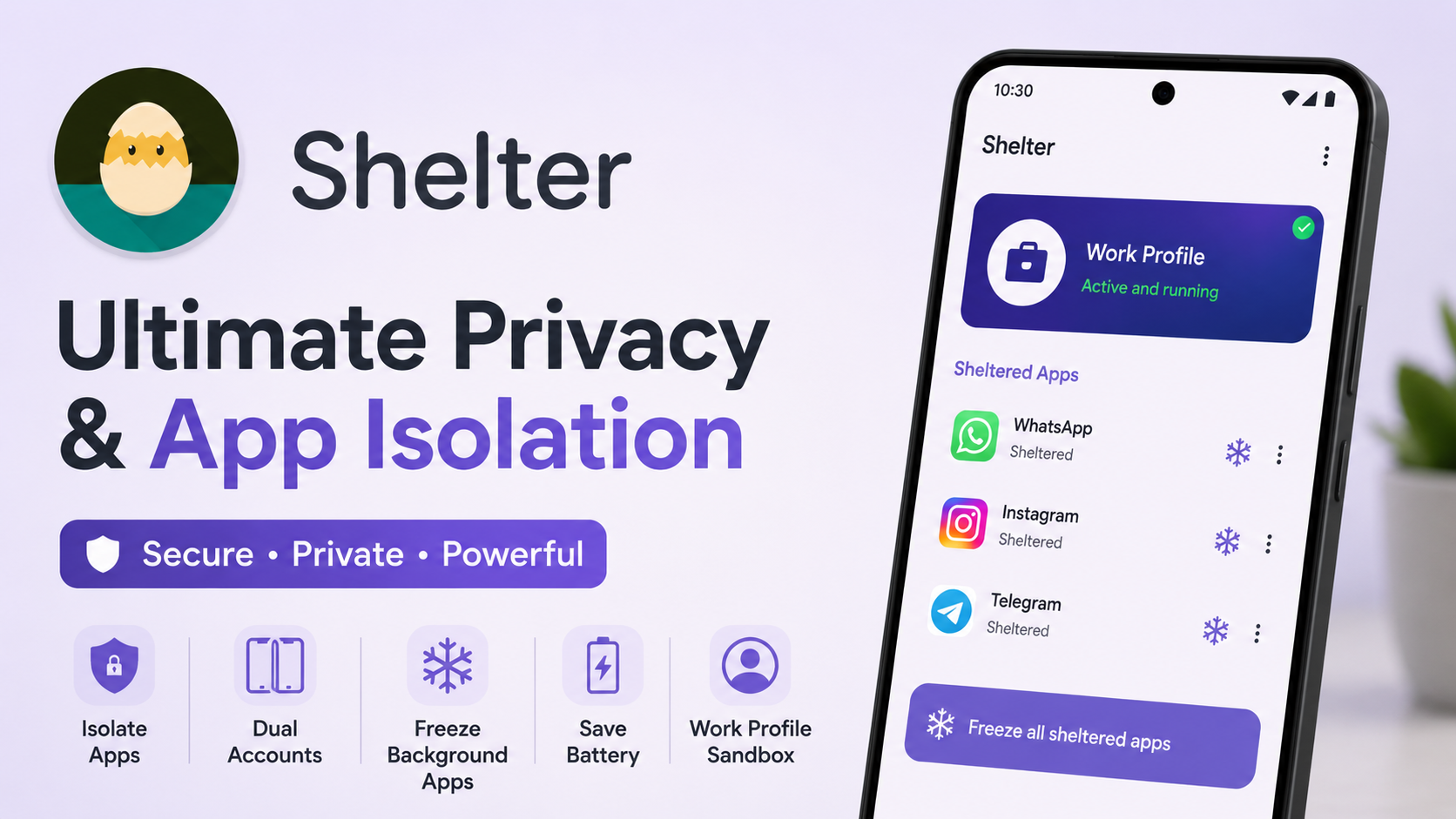
Shelter is a completely Free and Open-Source (FOSS) application designed to leverage a built-in, but often hidden, Android feature called the Work Profile.
Originally intended for corporate environments so employers could separate company data from your personal stuff, the Work Profile acts like a secure, sandboxed "mini-phone" living right inside your actual phone. Shelter simply acts as a manager that unlocks this feature for everyday users, without the need for root access, complicated ADB commands, or a corporate IT department.
By putting apps inside this isolated container, you ensure they cannot access your primary contacts, personal files, or track your activity across your main profile.
Watch the full tutorial here on our Youtube channel:
How to Install and Set Up Shelter
Setting up Shelter is incredibly straightforward. Because it is open-source and respects user privacy, you won't find intrusive ads or hidden fees. Here is how to get it running:
Step 1: Download the App
You can download Shelter safely from F-Droid (the gold standard repository for open-source Android apps) or directly from the developer's official Git repository. It is a very lightweight file, so it will not take up much space.
Step 2: Install and Grant Permissions
Tap on the downloaded APK file. If prompted, you may need to allow installations from unknown sources in your settings. Follow the on-screen prompts to install the app.
Step 3: Create the Work Profile
When you launch Shelter for the first time, it will automatically guide you through provisioning your new Work Profile. You just need to agree to the prompts and let Android do its thing in the background. This process usually takes a minute or two.
Once finished, open your phone's app drawer. You will immediately notice two distinct tabs at the bottom: Personal and Work. Everything in the Work tab is securely isolated from your main phone!
Key Features: How to Use Shelter
The user interface of Shelter is incredibly clean and minimalist. You will see two main lists: your Main profile apps and your Shelter profile apps. Here is how to use its core features:
1. Cloning Apps for Dual Accounts
If you want to run two WhatsApp or Instagram accounts, simply tap on the app in your Main list and select "Clone to Shelter". Android will install a fresh, separate instance of that app inside your Work Profile. It will have a tiny briefcase icon on it so you can easily tell the two apart.
2. Isolating Untrusted Apps
Sometimes you absolutely need to download an app for a specific task, but you do not trust it to access your main gallery or contact list. Install it directly into Shelter. Because the Work Profile is sandboxed, the app will see an empty contacts list and an empty photo gallery.
3. The "Freeze" Feature (Battery Saver)
This is arguably my favorite feature. If you have apps that constantly run in the background, consuming RAM and draining your battery, you can clone them to Shelter and use the Freeze option. When an app is frozen, it is completely suspended. It cannot run, it cannot send notifications, and it draws zero battery until you manually unfreeze it to use it.
Why I Use This Module Daily (Performance & Battery Analysis)
I have been using Shelter daily for several months now, and the impact on my device’s performance has been night and day.
Before Shelter, I had a few heavy shopping and social media apps that would constantly wake up my phone in the background. My battery would drain by 10-15% overnight while I was asleep.
By moving those specific apps into Shelter and setting them to Auto-Freeze when I lock my screen, my overnight battery drain dropped to a mere 2-3%. Furthermore, because these apps are not hoarding RAM in the background, my overall system UI feels significantly more responsive. It is the closest thing to having a custom ROM-level of battery optimization without actually having to unlock your bootloader.
Potential Bugs and How I Fixed Them
While Shelter is fantastic, it relies entirely on your specific phone manufacturer's implementation of the Android Work Profile. Because of this, you might run into a few minor quirks depending on your device brand.
1. Keyboard Syncing Issues:
When I first set up Shelter, I noticed my custom keyboard settings (like my personal dictionary and swipe habits) weren't carrying over to the apps inside the Work Profile.
- The Fix: This happens because the Work Profile isolates the keyboard too! To fix this, simply go to your phone's main Settings > Apps > Special App Access > Connected Work & Personal Apps. From there, you can allow your preferred keyboard to sync across both profiles seamlessly.
2. File Sharing Between Profiles:
Initially, it felt tedious trying to send a photo from my main gallery to an isolated social media app inside Shelter.
- The Fix: Shelter has a built-in feature called File Shuttle. You can enable this inside the Shelter settings. It will ask you to grant file access permissions twice (once for the main profile, once for the work profile). Once enabled, it creates a bridge, allowing your native file manager to easily move files back and forth between the two spaces without breaking the security sandbox.
Final Thoughts
If you care about your digital privacy, want to run multiple accounts smoothly, or just desperately need to stop rogue apps from killing your battery, Shelter is an absolute must-have tool. It democratizes an enterprise-level Android feature and puts the power back in your hands.
Have you tried using a Work Profile on your personal device yet? Let me know your experience or any questions you have down below!
Subscribe to our YouTube channel for daily Android tips, tricks, and tutorials: TechyNoob
Discussion (0)
Post a Comment
No comments yet. Be the first to share your thoughts!