
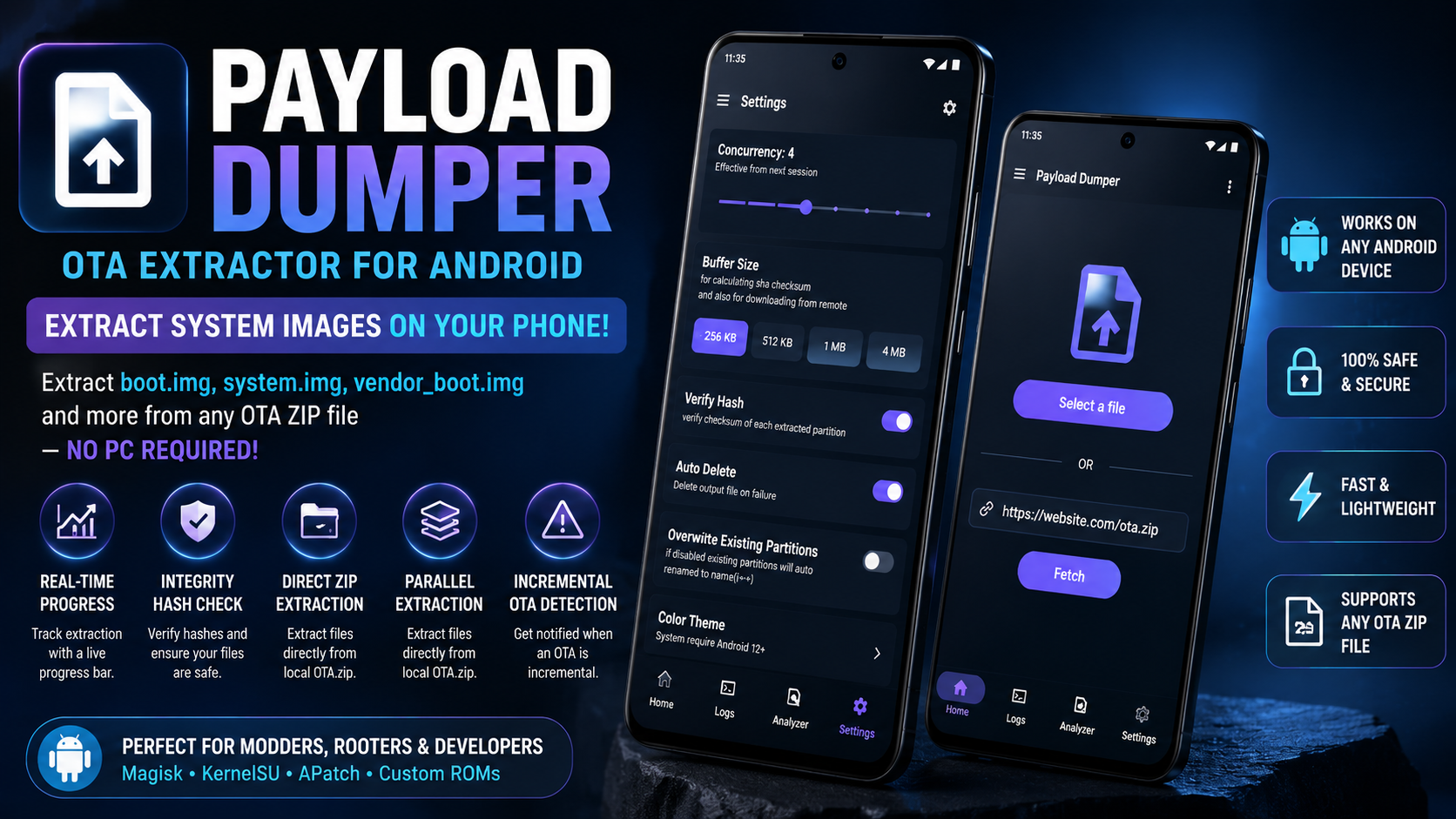
For anyone who frequently tinkers with Android system files, custom kernels, or partition backups, the traditional workflow has always felt a bit tethered. Usually, grabbing a clean boot.img or vendor_boot.img from an official Over-The-Air (OTA) update requires downloading a multi-gigabyte zip archive, transferring it to a desktop computer, and running command-line scripts to unarchive the contents.
With modern system architectures, manufacturers secure these partition images inside a unified compressed archive called payload.bin. Fortunately, mobile development has advanced to the point where desktop dependency is becoming optional. A highly efficient Android application called Payload Dumper changes this entirely by allowing you to handle the complete extraction process locally right on your Android device. Here is a comprehensive guide on how this utility operates, how to set it up, and an evaluation of its performance under real-world conditions.
Understanding Payload Dumper and Its Capabilities
When an Android manufacturer releases a full firmware package or system upgrade, the internal system partition files are encapsulated within a payload.bin file found inside the OTA zip. Payload Dumper bridges the gap between desktop utility and mobile convenience by reading these archives directly on an ARM64 native architecture.
The application architecture relies on a highly optimized native compilation layer to handle heavy cryptographic and decompression tasks without stalling the user interface. Its key feature set includes:
- Direct Archive Parsing: Reads directly inside payload.bin or intact OTA zip folders without demanding a separate pre-extraction step, preserving localized device storage.
- Real-Time Progress Tracking: Implements granular visual progress tracking for individual partitions during active operations.
- Cryptographic Verification: Validates the SHA-256 integrity hashes of extracted blocks to ensure files do not suffer from corruption during deep block parsing.
- Asynchronous Parallel Queuing: Permits structural multi-selection, allowing you to queue or add additional extraction targets while an initial extraction job runs.
Watch the full tutorial here on our Youtube channel:
Step-by-Step Setup and Partition Extraction Guide
Getting the utility operational on your device requires a quick installation and standard storage mapping. The following sections break down the complete workflow.
1. Installation and Permission Configuration
Because this utility interacts directly with local low-level file structures and deep directory sorting, it must be sideloaded and configured correctly.
- Acquire the latest structural package file (.apk) from an approved distribution repository like GitHub or IzzyOnDroid.
- Open your system file manager, navigate to your download directory, and select the package.
- Confirm the installation prompt. If prompted by system security, temporarily grant the "Install Unknown Apps" permission to your file manager.
- Upon launching the app for the first time, it will request permission to access your local storage. On modern Android releases, grant the broad storage access permission (MANAGE_EXTERNAL_STORAGE) so the application can read massive zip archives and write output files across paths smoothly.
2. Loading and Unpacking the Archive
Once inside the clean, minimalist interface, you can proceed to parse a locally stored update package, such as an official Google Pixel 6 OTA image.
- Ensure you have downloaded the full factory OTA zip file for your target device and stored it on your internal storage.
- Within the interface, use the folder navigation utility to point the application to the directory housing your OTA zip package or standalone payload.bin.
- Tap on the archive file. The app's backend parsing engine will immediately scan the binary metadata.
- Instead of initiating a slow full-archive extract, the app displays a complete list of the isolated partitions hidden inside (e.g., boot, init_boot, vendor_boot, system, vbmeta).
- Check the boxes next to the specific files you require. For standard kernel work or recovery updates, selecting boot or vendor_boot is usually sufficient.
- Trigger the extraction process. The utility will unpack the target .img files directly into your designated output directory, leaving the rest of the massive archive unbothered.
A Practical Evaluation: Techynoob's Perspective
Why I Use This Utility Daily
In an ongoing effort to streamline system validation and device deployment processes at Techynoob, maintaining a flexible workspace is crucial. Hardware configurations change constantly, and needing a physical PC workstation just to extract a single 64-megabyte boot file for recovery patching is a massive bottleneck.
This layout allows for an agile, mobile-first workflow. Whether out in the field or away from the main desk architecture, pulling down an official OTA update directly on a phone and isolating the necessary kernel image within minutes saves immense time and reduces pipeline complexity.
Battery Impact and Performance Analysis
A primary concern when running heavy decompression routines on mobile chipsets is hardware thermal load and battery drain. Unpacking complex LZMA-compressed chunks out of a 4 GB container is computationally demanding.
However, monitoring shows that the background engine uses highly efficient multi-threaded execution patterns. Because the processing backend utilizes a lightweight, native binary structure linked via JNI, CPU saturation remains strictly organized. The extraction completes so quickly—typically under a minute for essential partitions—that the total power consumption draw is completely negligible. It hits the processor hard and fast, then drops back down to zero idle consumption instantly.
Potential Bugs and How I Fixed Them
During prolonged deployment across various hardware generations, a couple of common edge cases may pop up:
- The Delta Update Error: Attempting to process an incremental or "delta" OTA package will throw a structural error. The app features built-in incremental detection to warn you beforehand. If you run into this, the fix is straightforward: always ensure you are downloading the Full OTA Image from the manufacturer's firmware site rather than a small incremental security patch.
- Storage Access Failures: On certain custom Android skins, the application might occasionally report a write error when saving files. This is almost always caused by scoped storage restrictions. Navigating to the system settings page for the app, manually revoking file access, and re-enabling full "All Files Access" resolves the directory access conflict immediately.
Final Thoughts
The development of high-performance localized developer utilities marks a great shift for the Android ecosystem. By moving structural extraction pipelines off traditional desktop workstations and placing them directly onto the mobile platform, partition access is more open and flexible than ever. For developers, testers, and device hobbyists alike, this utility serves as an invaluable addition to the modern mobile toolset.
Subscribe to our YouTube channel for daily Android tips, tricks, and tutorials: TechyNoob
Discussion (0)
Post a Comment
No comments yet. Be the first to share your thoughts!