
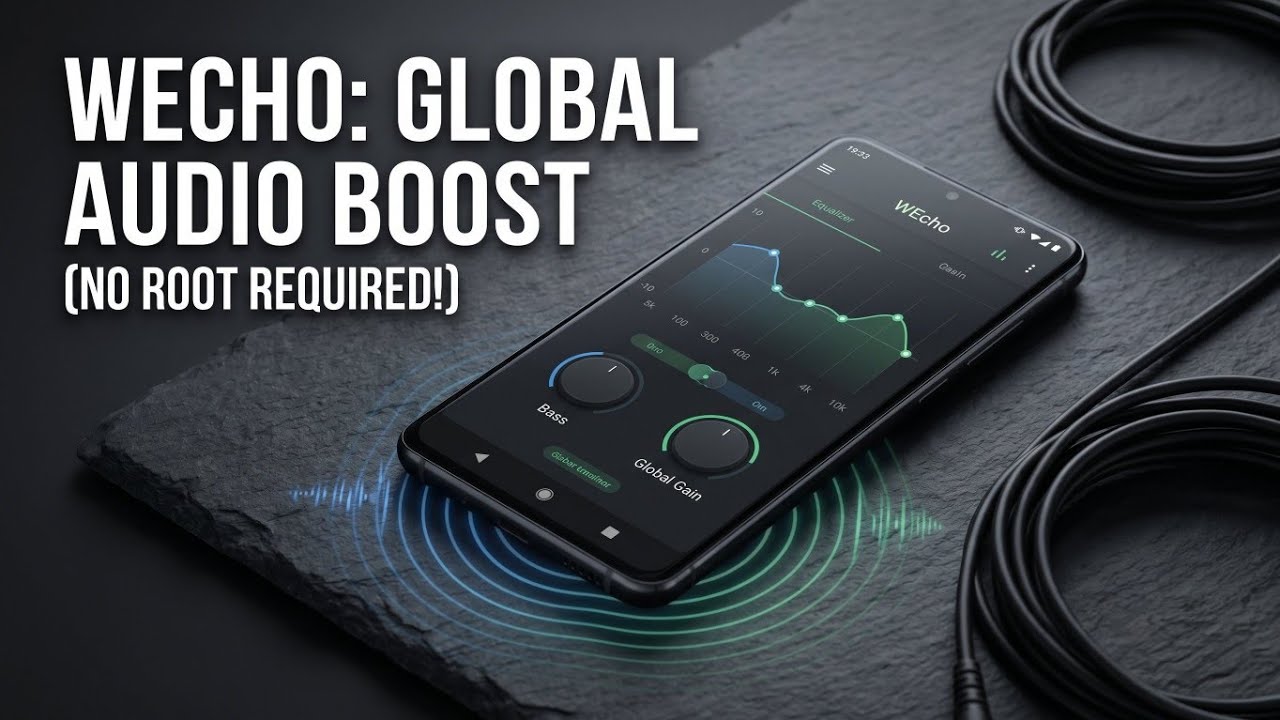
Welcome back to Techynoob! If you have ever felt that your Android device’s audio output lacks depth, punch, or clarity, you are certainly not alone. While many smartphones pack decent hardware, the software processing often leaves a lot to be desired. Fortunately, there is a powerful solution that gives you total control over your device's sound profile without the complicated and often risky process of rooting your phone.
Today, we are taking an in-depth look at a fantastic application called WEcho. Whether you are an audiophile wanting precise equalizer adjustments or just someone who wants louder, clearer audio from your phone's speakers, this comprehensive guide will walk you through everything you need to know about setting up and using WEcho.
Watch the full tutorial here on my Youtube channel:
What is WEcho?
WEcho is a feature-rich, global audio effect processor designed specifically for modern Android devices. Unlike many standard equalizer apps that only work with specific music players, WEcho applies its enhancements globally, meaning it improves the sound across your entire system—from streaming apps and podcasts to mobile games.
Under the hood, the application relies on Native C++ for its core Digital Signal Processing (DSP) algorithms. This ensures top-tier performance with incredibly low latency. On the frontend, it features a sleek, modern, and highly interactive user interface built with Flutter, making it accessible and easy to navigate. Most importantly, it works straight out of the box and features deep Shizuku support for enhanced system compatibility.
Step-by-Step Guide to Installing WEcho
Getting WEcho running on your device is a straightforward process. Since it is a specialized tool, you will be working with its APK file. Here is how to get it installed:
- Download the Package: First, secure the WEcho APK file from its official repository or a trusted source.
- Locate the File: Open your preferred Android File Manager application. Navigate to your internal storage and open the Downloads folder (or whichever directory you saved the file to).
- Initiate Installation: Find the WEcho APK file and simply tap on it.
- Confirm Setup: Tap Install when prompted by your system. The Android package installer will take a brief moment to complete the setup process. Once finished, you can open the app directly from your home screen or app drawer.
Configuring the Capture Settings
When you first open WEcho, you will want to configure how the app captures and processes your system's audio.
- Shizuku Mode: This is a crucial setting for system-wide performance. You can leave this toggled Off to rely on Android's native audio capture methods. However, if you have Shizuku configured on your device, turning this On enables Shizuku-assisted capture, granting the app stronger, more reliable system-level access without requiring a rooted device.
- Adaptive Audio Profiles: WEcho allows you to customize your experience based on your current hardware. Leaving this Off maintains a single, unified configuration for everything. Turning it On enables automatic profile switching, meaning the app will seamlessly transition between different audio presets depending on whether you are listening through your device's built-in speakers or a pair of connected headphones.
A Deep Dive into WEcho’s Audio Effects
The true power of WEcho lies in its incredibly robust audio effect suite. Here is a breakdown of the tools at your disposal:
Volume and Dynamic Control
- Channel Balance & Global Gain: Easily adjust your left and right stereo field, and utilize Global Gain to manage the overall volume level affecting all audio signals passing through your device.
- The Limiter: This tool is perfect for tracks with massive loudness variations. It compresses the dynamic range using precise controls, including Threshold, Knee, Ratio, Makeup Gain, Attack, and Release.
- Multi-Band Limiter: An automatic limiting feature that significantly reduces audio distortion, ensuring clean playback even at higher volumes.
Frequency Enhancements
- Transient Enhancement: This setting specifically targets and enhances mid-to-high frequency transient responses, bringing out incredible clarity and hidden details in your audio.
- Bass Enhancement: For those who love low-end punch, this feature boosts low-frequency signals. You can tweak the Gain (intensity), the Center Frequency (the specific range being enhanced), and the Q factor (which dictates the bass's elasticity and tightness).
- 10-Band IIR Equalizer: A reliable, simple Infinite Impulse Response (IIR) equalizer featuring a fixed 10-band adjustment slider for manual frequency tuning.
Advanced Acoustic Textures
- Even Harmonic Generator: If you love the sound of vintage audio equipment, this feature generates even harmonics to replicate a warm, analog texture. It features three distinct adjustment levels: Base, Warm, and Sugar.
- Convolution Reverb: This allows you to use actual impulse response (IR) files to simulate real-world spatial acoustics. It is incredibly powerful, supporting up to 65,536 samples per channel.
- Virtual Bass (Speaker Optimized): Designed specifically to make small smartphone speakers sound massive. It manipulates high-pass and band-pass gains alongside 2nd, 4th, and 6th harmonic coefficients to trick the ear into perceiving deeper bass. The highly recommended ratio for this setting is 0.6, 0.2, and 0.2.
- Low Cut Filter: Available exclusively in speaker mode, this cuts out extremely low frequencies that small speakers cannot physically reproduce, allowing for a much louder, distortion-free overall output.
Final Thoughts
WEcho is an absolute powerhouse for anyone looking to upgrade their mobile audio experience. By combining an intuitive interface with studio-grade DSP controls—and removing the barrier of device rooting—it stands out as a must-have utility. Install it, tweak the settings to your liking, and enjoy your new, high-fidelity Android sound system! Keep checking back with Techynoob for more deep dives into the best apps and tech tutorials.
Subscribe to my Youtube channel for daily android tips tricks and tutorials: TechyNoob


Discussion (0)
Post a Comment
No comments yet. Be the first to share your thoughts!