
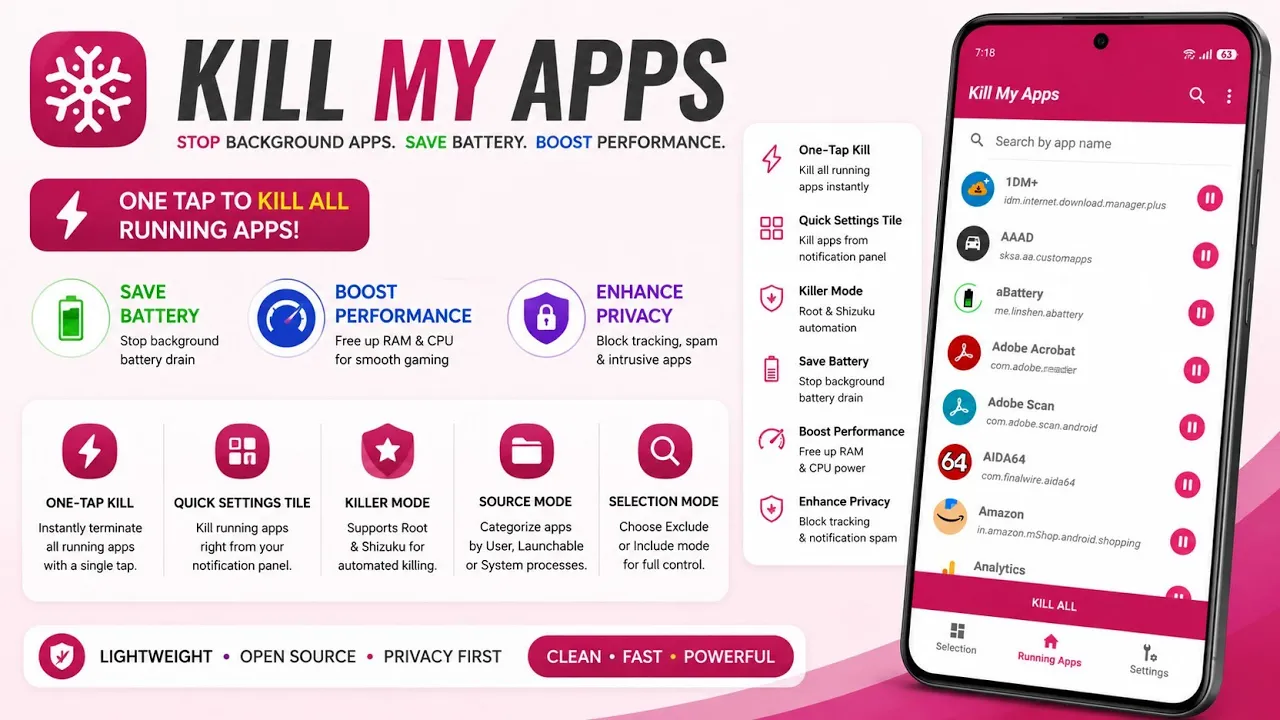
Android is designed to manage background applications automatically, but there are situations where you may want more control over what remains active. Apps that continue running background services, refresh content, or use resources when you aren't actively using them can make a phone feel less responsive, especially on older hardware.
Kill My Apps is an Android utility designed to make stopping applications easier. Instead of opening the Settings app, finding an application manually, and using the force-stop option, it provides a more convenient way to stop selected applications and manage background activity.
I tested Kill My Apps on my Redmi Note 7 Pro running MatrixxOS, based on Android 16 QPR2. In this article, I'll explain what the application does, how it works, the different ways it can be used, and why force-stopping applications is not always the same thing as improving battery life or performance.
What Is Kill My Apps?
Kill My Apps is an Android utility focused on stopping applications that are running in the background.
The idea is simple: rather than manually opening Android's App Info screen for individual applications, you can use a dedicated interface to stop apps more conveniently.
This can be useful when troubleshooting an application, stopping an app that has become unresponsive, or intentionally preventing an application from continuing to run until you open it again.
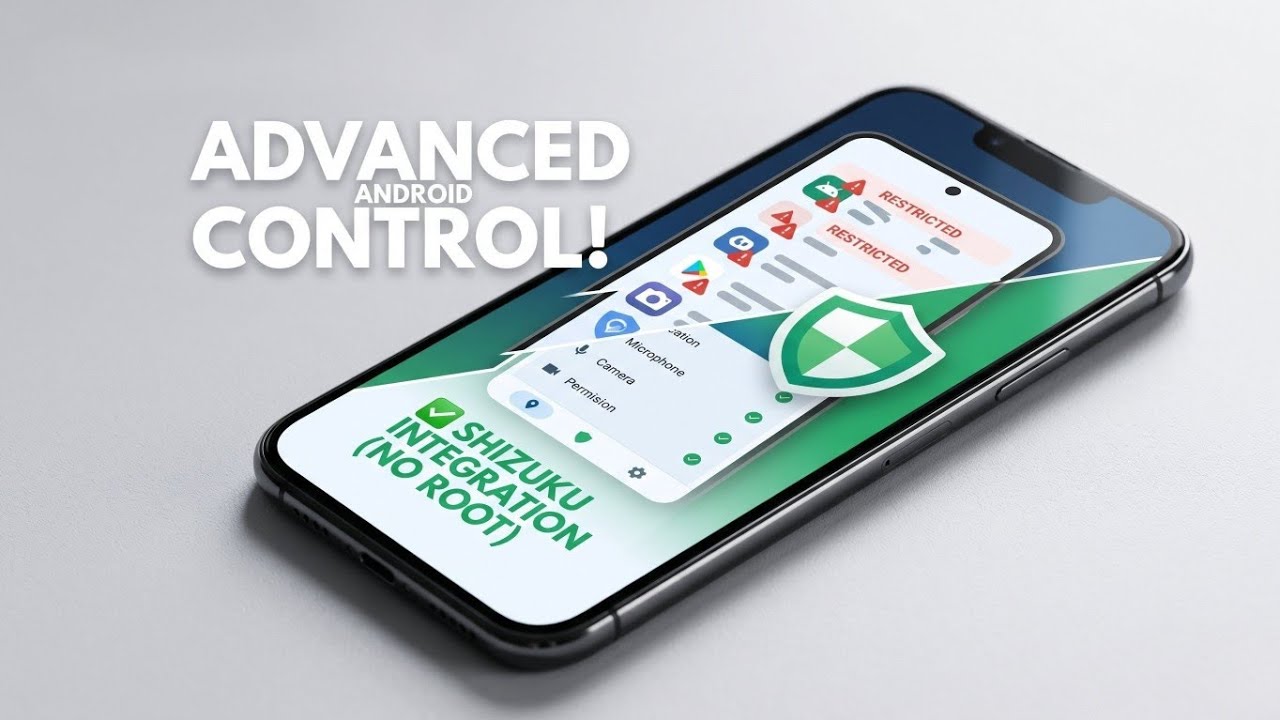
The application is particularly interesting for Android enthusiasts because it supports advanced access methods on compatible devices, including root and Shizuku, while also providing functionality for users who don't want to modify their phones using traditional root.
My Testing Setup
I tested Kill My Apps using:
- Device: Redmi Note 7 Pro
- ROM: MatrixxOS
- Android: Android 16 QPR2
- Testing environment: Custom ROM
- Access: Shizuku/root-supported functionality where applicable
Using the application on an older Redmi Note 7 Pro running a current Android 16-based custom ROM provided a useful way to evaluate how a background-app management utility fits into a modern Android environment.
Watch the Video
I also made a complete video demonstrating Kill My Apps and its main functionality. If you want to see the application in action before installing it, the video provides a practical visual overview.
The written guide below goes into more detail about when using a tool like this makes sense and why you shouldn't automatically force-stop every application on your phone.
Why Would You Need It?
Android already includes tools for managing applications, so a reasonable question is: why install another app to do something Android can already do?
The answer is convenience and control.
If you're troubleshooting an application, you may want to completely stop it and then launch it again. Force-stopping an application can also be useful when an app is stuck, behaving incorrectly, or repeatedly running when you don't want it to.
For Android enthusiasts, having a dedicated tool can make this process faster, especially when managing multiple applications.
It can also be useful during testing. If you're comparing how an application behaves after a clean launch, force-stopping it provides a simple way to terminate its current process before opening it again.
How Does It Work?
Android applications normally run within the operating system's application and process-management framework. The operating system decides when applications should remain cached, when processes should be terminated, and which background work is allowed to continue.
A force-stop operation is different from simply swiping an application away from the recent-apps screen.
When an application is force-stopped, Android prevents it from running until it is launched again or otherwise allowed to start through an appropriate mechanism.
This can make force-stop useful for troubleshooting, but it isn't something that should be performed blindly on every application.
Root and Shizuku Support
One of the useful aspects of Kill My Apps is its support for advanced Android access methods.
Shizuku can provide compatible applications with access to certain Android system APIs without requiring traditional root. This makes it possible for users to access more advanced functionality while keeping their device unrooted.
Root users can also take advantage of the additional permissions available through their root environment.
This makes the application suitable for different types of Android users, from people who simply want a convenient utility to enthusiasts who already use Shizuku or root-based customization.
Setting Up Kill My Apps
Start by installing the application and opening it.
Depending on the features and access mode you intend to use, configure the required permissions. If you're using Shizuku, make sure its service is already running and then grant Kill My Apps the appropriate Shizuku access.
Users with root can configure the application through their existing root environment where supported.
Once the application has the necessary access, you can select applications and use the available controls to stop them.
You can download the version used in my video here:
For the latest project information and source code, use the official developer/GitHub source linked with the project rather than relying on modified APKs from unknown websites.
Does Force-Stopping Apps Improve Battery Life?
This is where some Android optimization advice becomes misleading.
Force-stopping an application does not automatically mean that your phone will suddenly have better battery life.
Modern Android already manages cached applications and background processes aggressively. When an application isn't doing useful work, Android can keep its process cached without allowing it to consume significant CPU resources.
Repeatedly force-stopping applications can also be counterproductive. If you immediately open the same application again, Android has to start its processes from scratch.
The situation is different when a particular application is genuinely misbehaving—for example, repeatedly performing unwanted background activity, consuming excessive resources, or failing to release something correctly.
In those situations, force-stopping the application can be a useful troubleshooting step.
So I would treat Kill My Apps primarily as a control and troubleshooting tool, rather than promising a universal battery-saving solution.
Useful Scenarios
There are several situations where I find this type of utility useful.
Troubleshooting an App
If an application freezes or behaves unexpectedly, force-stopping it and launching it again can sometimes resolve temporary problems.
Testing Applications
Developers and Android enthusiasts can use a clean force-stop/start cycle when testing how an application behaves from a fresh launch.
Managing Unwanted Background Activity
If you know that a particular application is continuing to operate when you don't need it, force-stopping it provides a direct way to stop it.
Privacy-Focused Device Management
Force-stopping an application can temporarily prevent it from running until you launch it again. However, it should not be treated as a complete privacy mechanism.
For stronger privacy control, you should also review Android permissions, background access, network permissions where available, and the application's own settings.
Important Limitations
There is no universal reason to force-stop every application.
System applications and services may be required for important Android functionality. Stopping the wrong component can cause temporary problems, broken notifications, or unexpected behaviour.
You should therefore avoid blindly selecting system components unless you understand what they do.
Also remember that Android's behaviour changes between versions and manufacturers. A feature that works one way on a custom ROM may behave differently on another Android build.
Privacy and Security
Kill My Apps is a utility that can potentially interact with other applications at a deeper level when advanced permissions are granted.
That means you should only install it from a source you trust and carefully consider which permissions you provide.
If you're using Shizuku, remember that Shizuku access is itself a powerful capability. Don't grant it to applications unless you understand why they need it.
The same principle applies to root access.
More privileges mean more control, but they also mean that a malicious or poorly designed application can potentially cause more damage.
My Experience on MatrixxOS
On my Redmi Note 7 Pro running MatrixxOS based on Android 16 QPR2, Kill My Apps fits well into the type of utility collection I use for Android customization and troubleshooting.
The main benefit isn't that it magically makes the phone faster. Instead, the useful part is having a convenient interface for managing applications when Android's normal App Info workflow becomes repetitive.
This distinction is important because performance claims should be based on actual measurements rather than simply assuming that fewer background processes always equal better performance.
Pros and Cons
Pros
- Convenient application management
- Useful for troubleshooting
- Supports advanced Android access methods
- Shizuku support can avoid traditional root
- Useful for Android testing
- Can quickly stop selected applications
Cons
- Force-stopping isn't a universal battery-saving solution
- Some system applications shouldn't be stopped
- Advanced permissions require caution
- Behaviour can vary between Android versions and ROMs
- Repeatedly stopping and reopening apps can sometimes be counterproductive
Final Verdict
Kill My Apps is best understood as a practical Android management and troubleshooting utility, rather than a magic performance booster.
On my Redmi Note 7 Pro running MatrixxOS based on Android 16 QPR2, its main value is the additional control it provides when I need to stop applications without repeatedly navigating through Android's Settings menus.
The combination of root and Shizuku support also makes it interesting for Android enthusiasts who want more control without necessarily rooting their device.
However, I wouldn't recommend force-stopping applications simply because they appear in the background. Android's process management is designed to handle cached applications, and killing everything can sometimes create more work for the system when those apps are opened again.
Use Kill My Apps when you have a specific reason—such as troubleshooting, testing, managing a problematic application, or intentionally stopping an app—and it becomes a useful addition to an Android customization toolkit.
Test Device: Redmi Note 7 Pro
ROM: MatrixxOS
Android: 16 QPR2
Download: Download


Discussion (0)
Post a Comment
No comments yet. Be the first to share your thoughts!